
DYNAMIC PACKAGE
NOTE
Please create an account and add all guest information to the “Guest List” before making a reservation request. This will make the below two-step process more efficient.
※Reservations must be made by the participating guest. Bookings made by a third party or through travel agencies may not be accepted and subject to cancellation.
PART ONE | Make Reservation Request
PART TWO | Pay to Finalize Booking
PART ONE: Make Reservation Request
SEARCH
Search for Dynamic Package
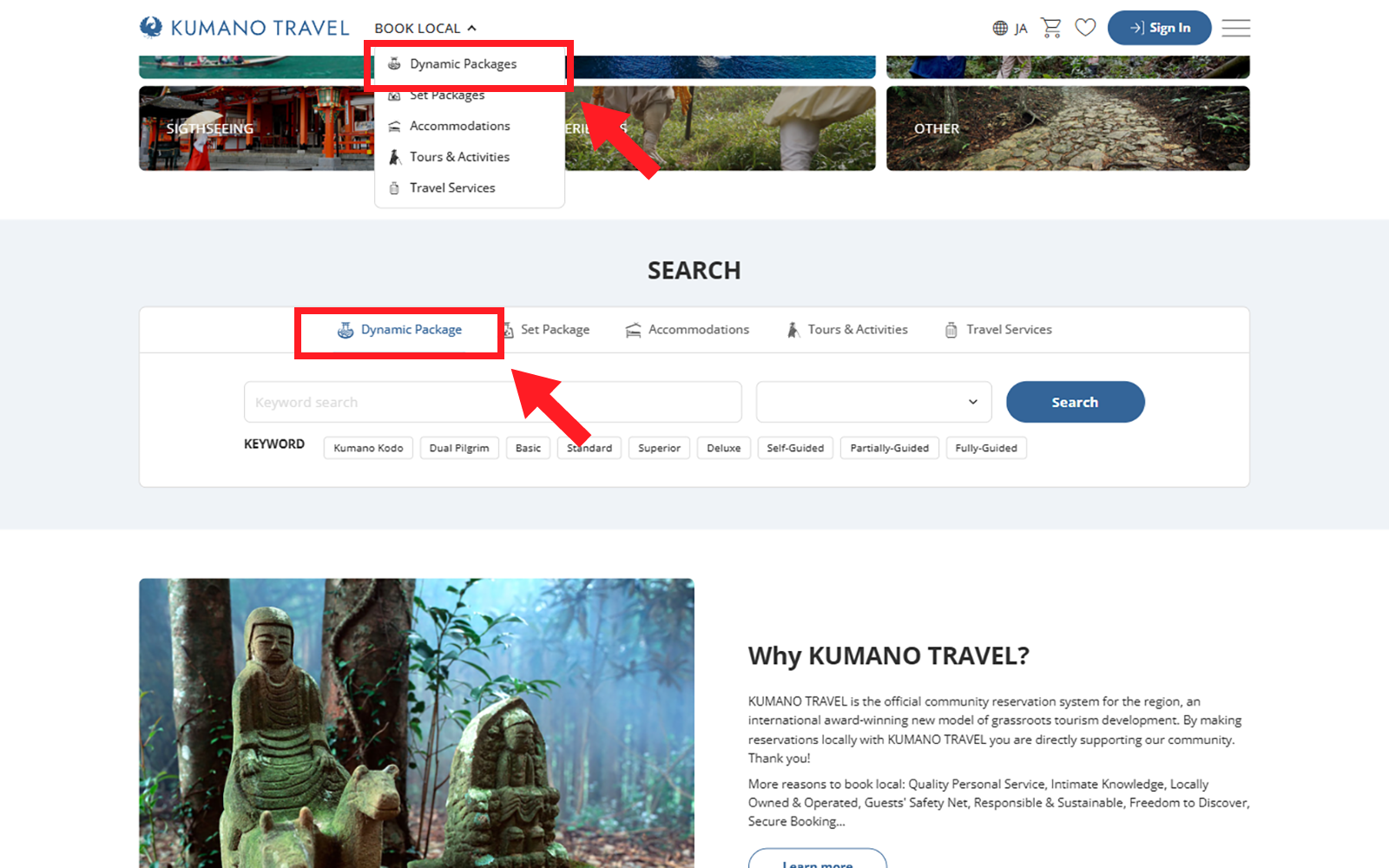
Click on a Dynamic Package thumbnail, go to the search page for products in the “BOOK LOCAL” tab or in the search function further down the page. Select the Dynamic Package that fits your needs.
ADD TO CART
Select Dynamic Package
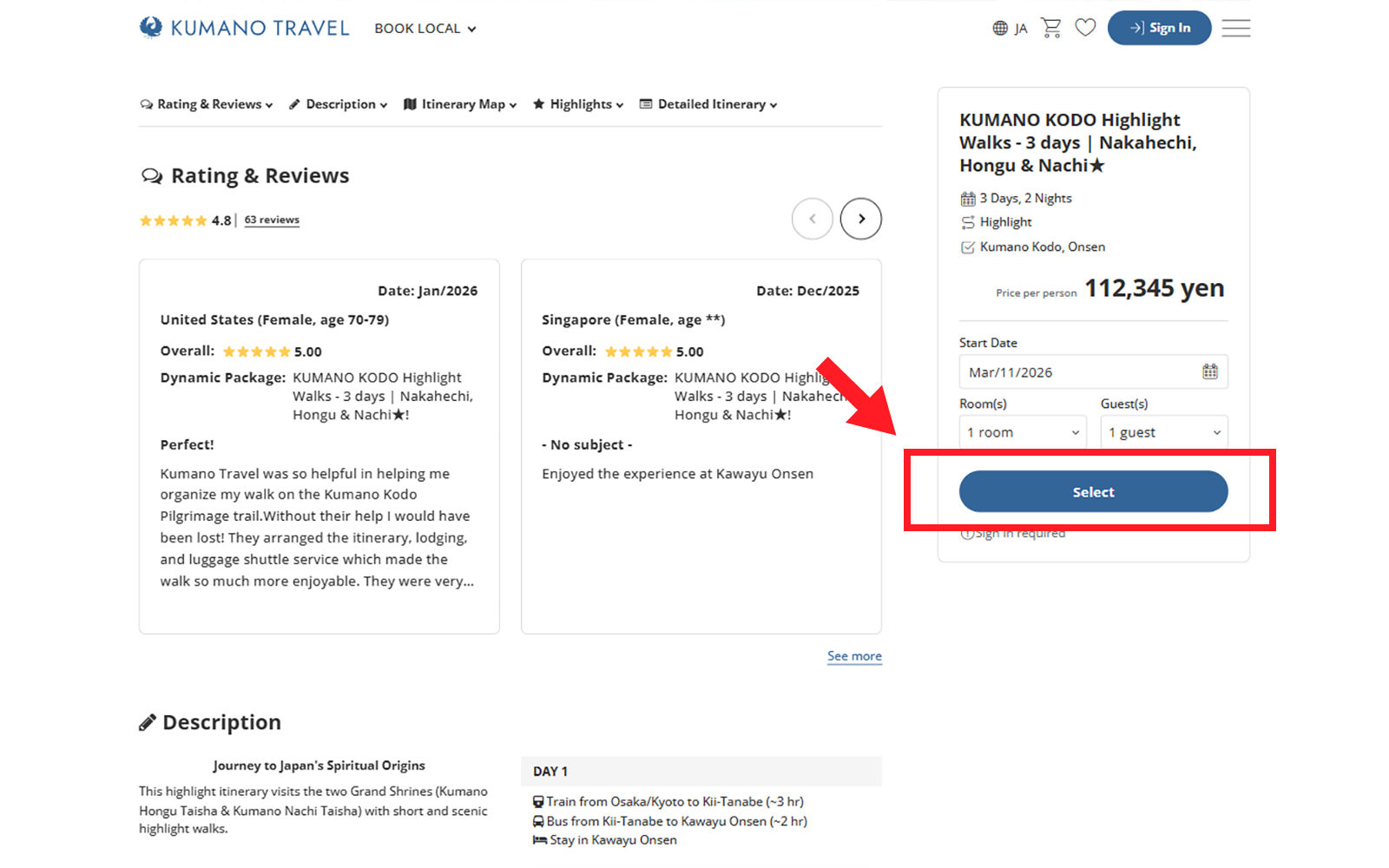
After you have selected the dynamic package, please enter your desired travel start date, number of rooms, and number of guests, then click the “Select” button.
Add to Cart
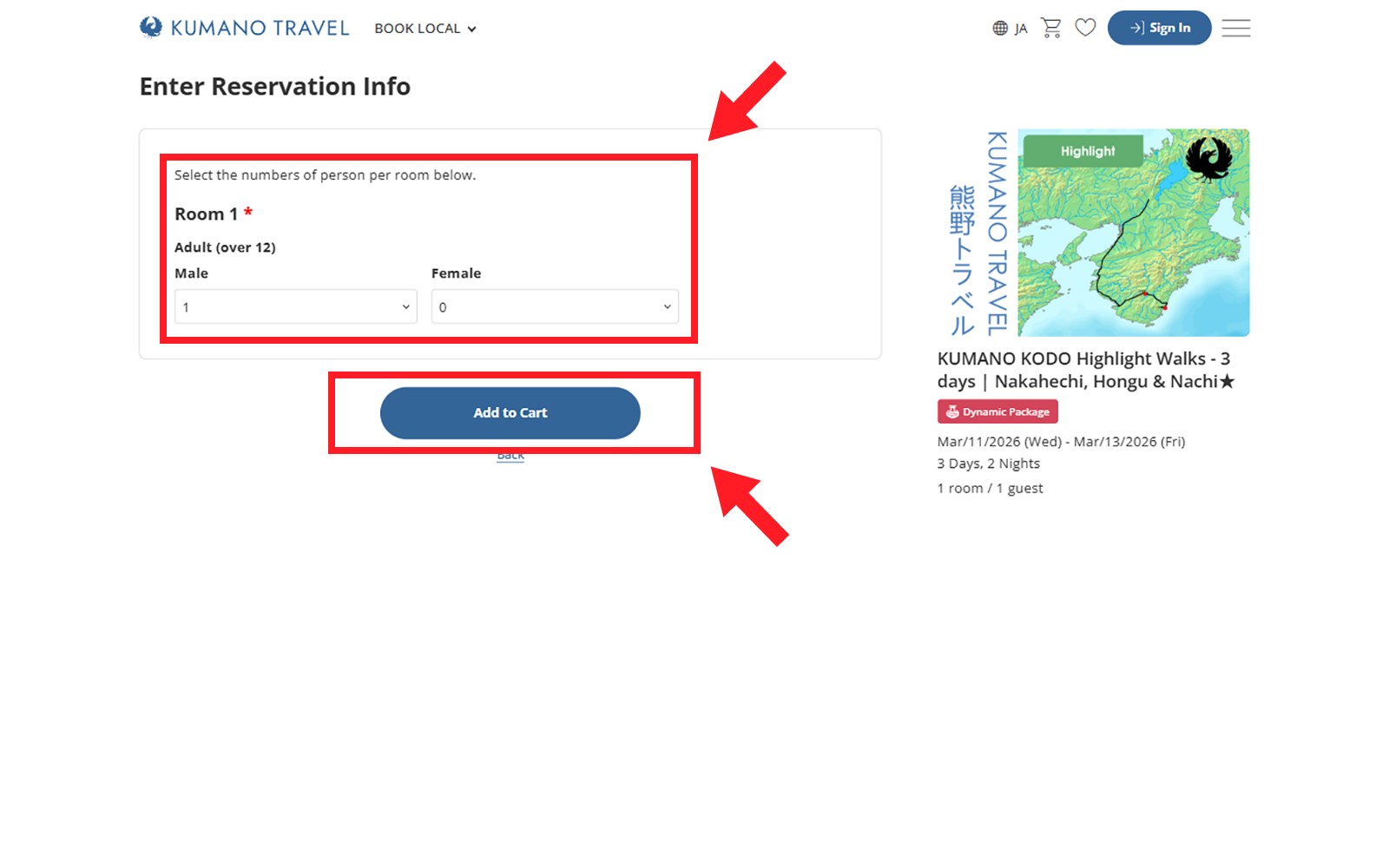
“Enter Reservation Info” and click the “Add to Cart” button. The product will be added to your cart.
NOTE
Only individual Dynamic Packages can be added to your cart. If you have other items in your cart you will need to delete them before adding the Dynamic Package.
SEND REQUEST
Sign In or Create Account
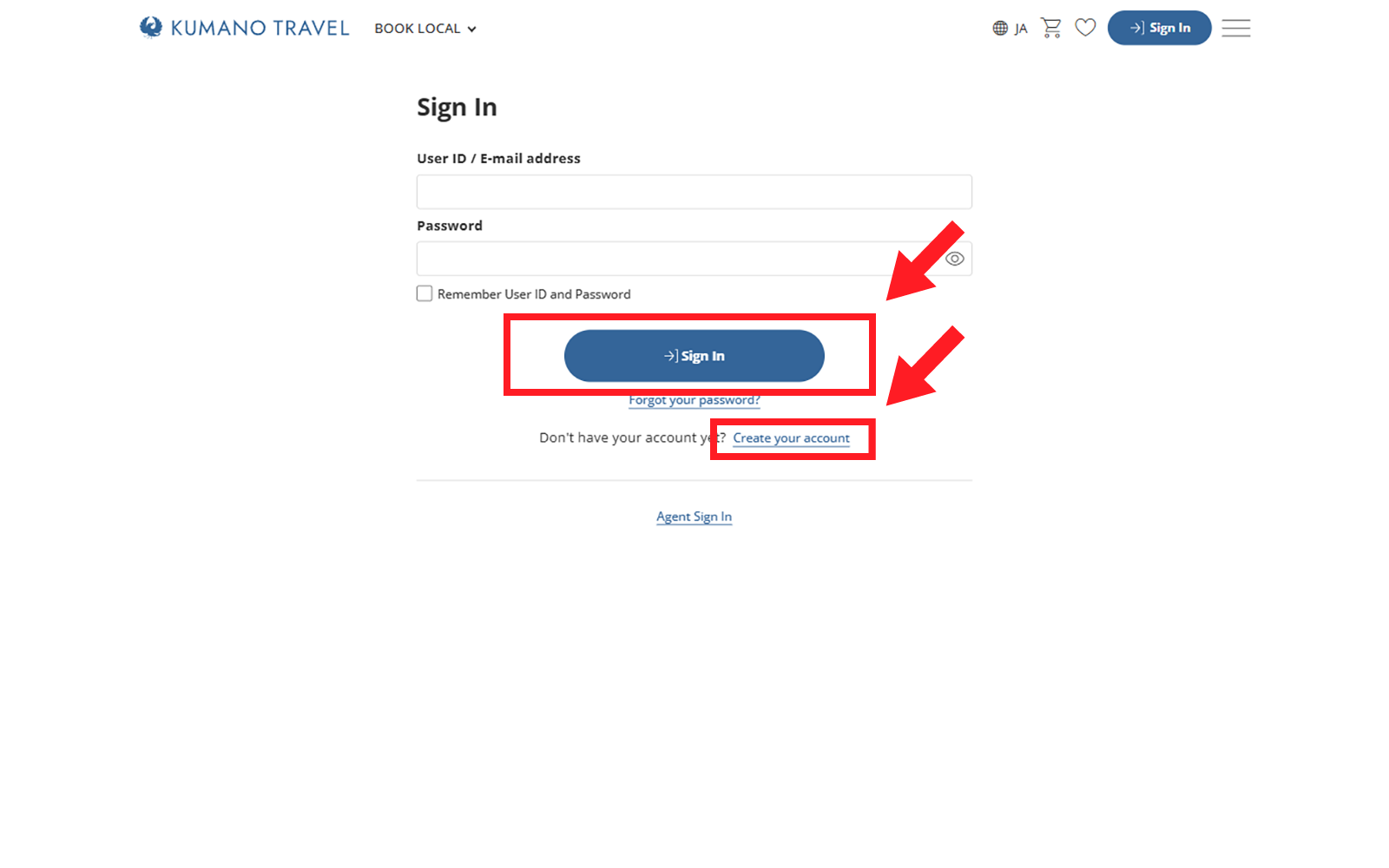
Sign in if you already have an account or create one to continue.
Proceed to Enter Guest Information
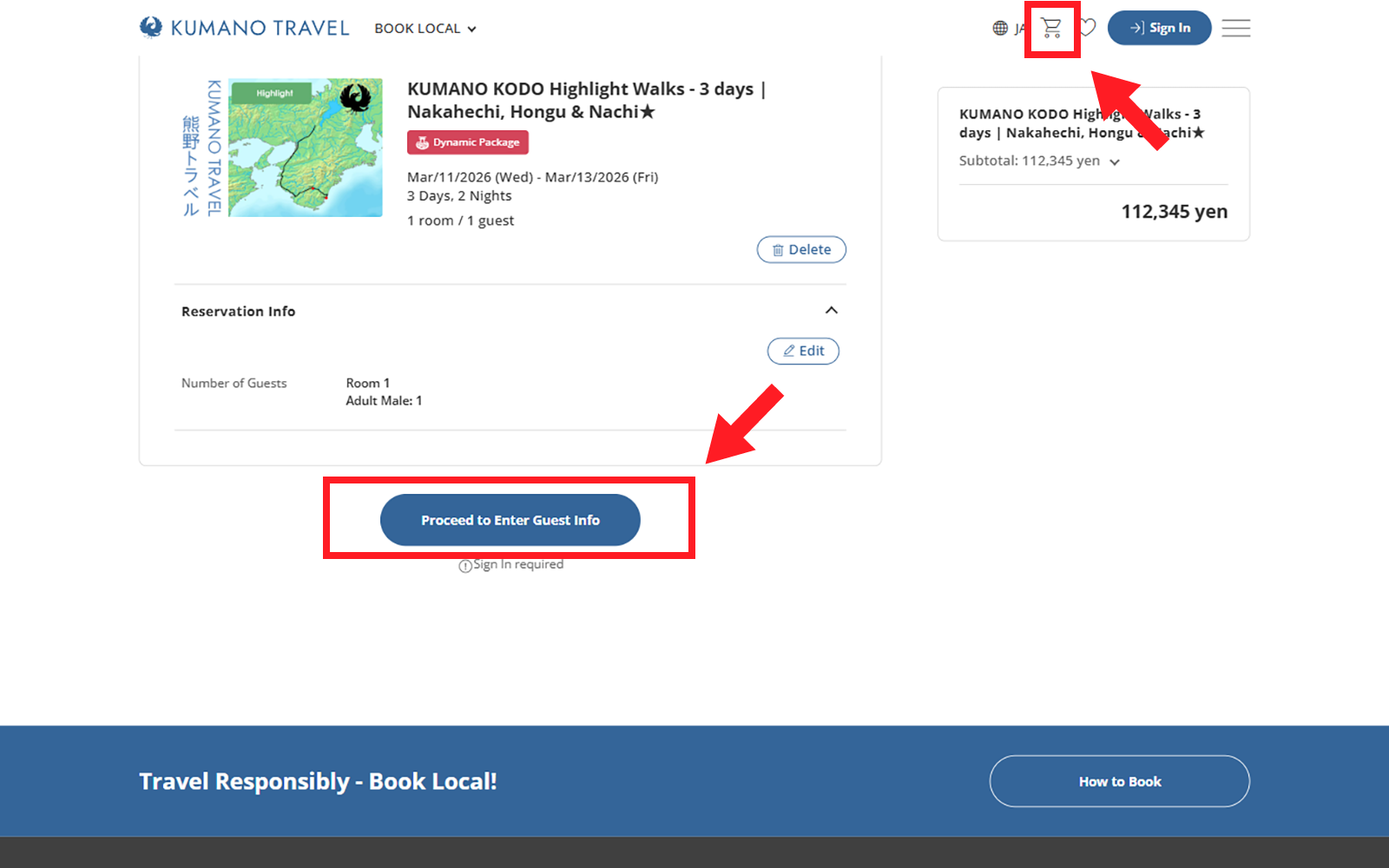
Once the package is in your cart click on the “Proceed to Enter Guest Info” button.
Enter Guest Information
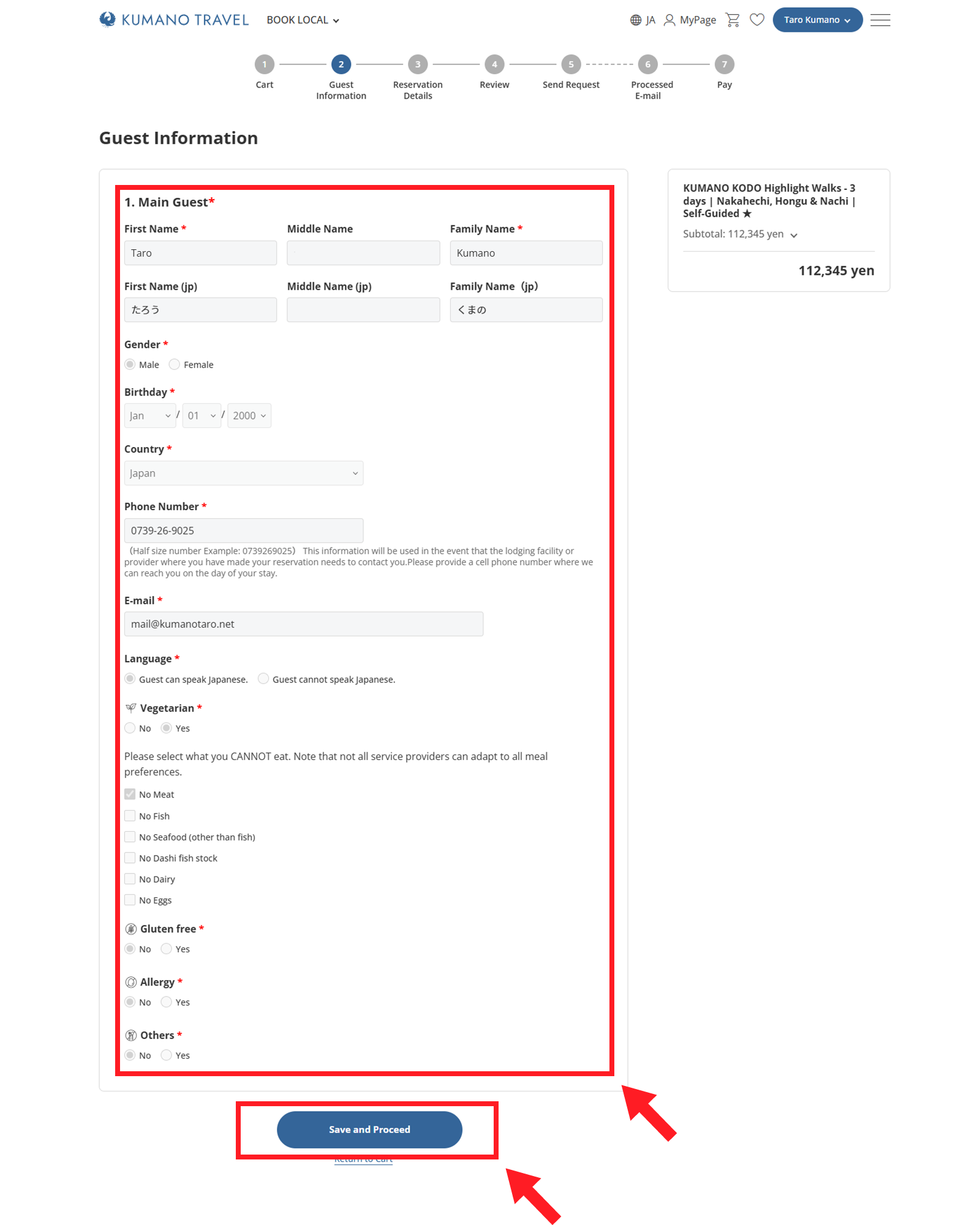
Enter guest information and click on the “Save & Proceed” button.
NOTE
You can select guest from the Guest List drop-down box. To register new guests please go to your MyPage account and click on the “Guest List” tab and then the “Add Guest” button.
Add Reservation Details
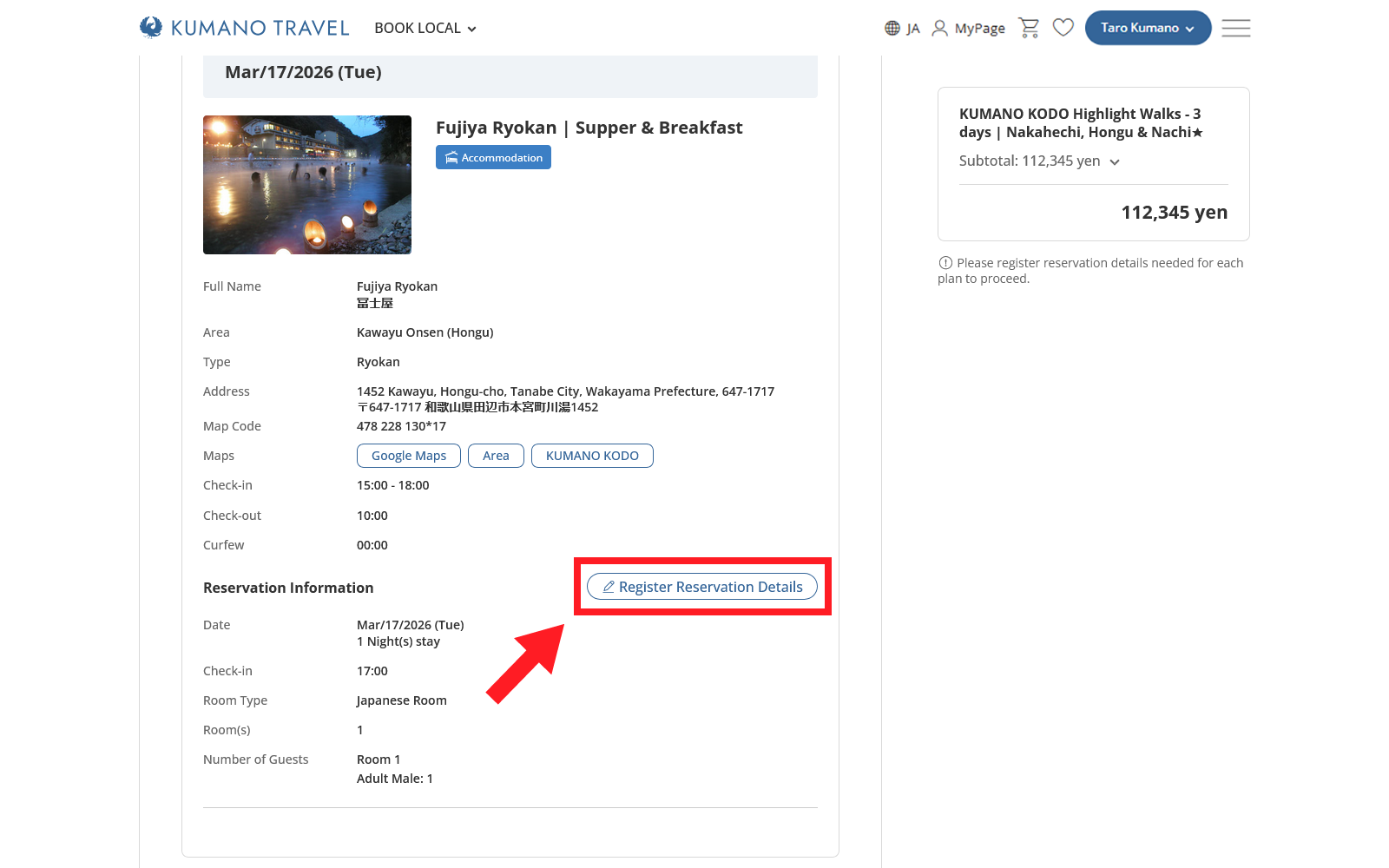
Enter the details needed for each price plan. Click on the “Register Reservation Details" button for each price plan.
Register Reservation Details
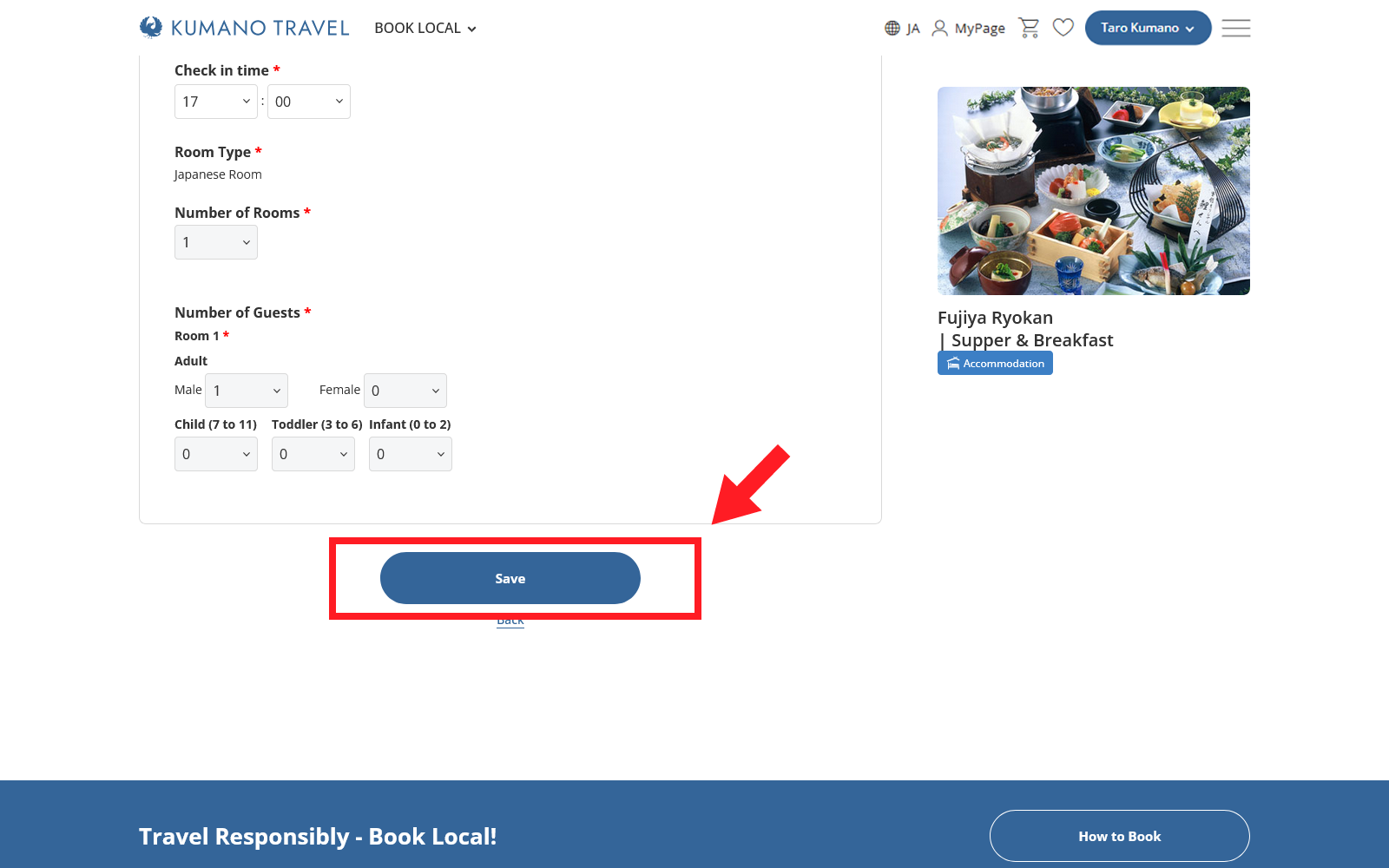
Enter the required information and click on the “Save” button to return to the “Add Reservation Details” page. Repeat the process for all price plans.
NOTE
The boxes that are grey do not need to be edited, only the white boxes.
Save and Proceed
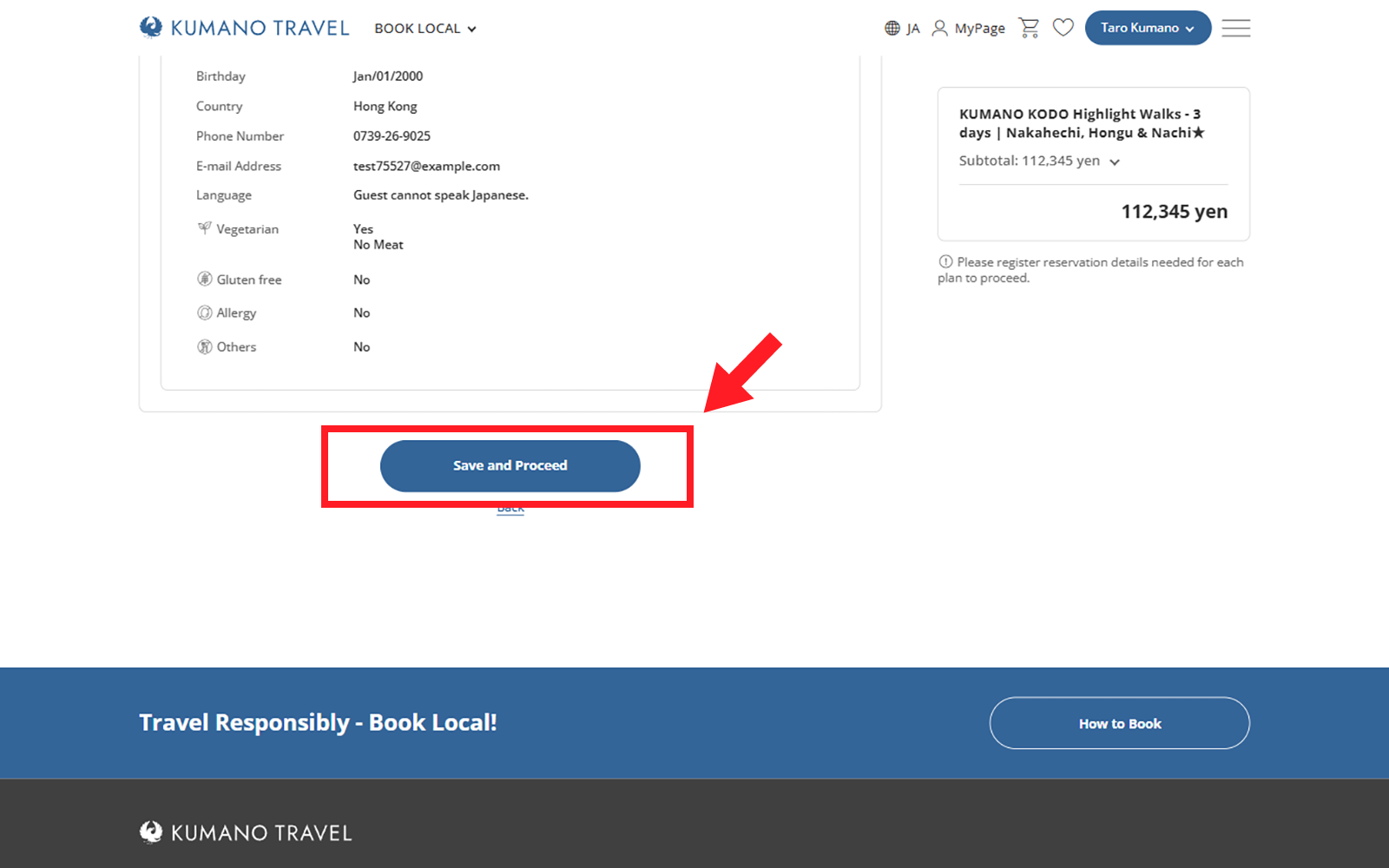
Once all the needed reservation details are registered click on the “Save and Proceed” button at the bottom of the page.
Review Reservation & Agree to Terms of Conditions
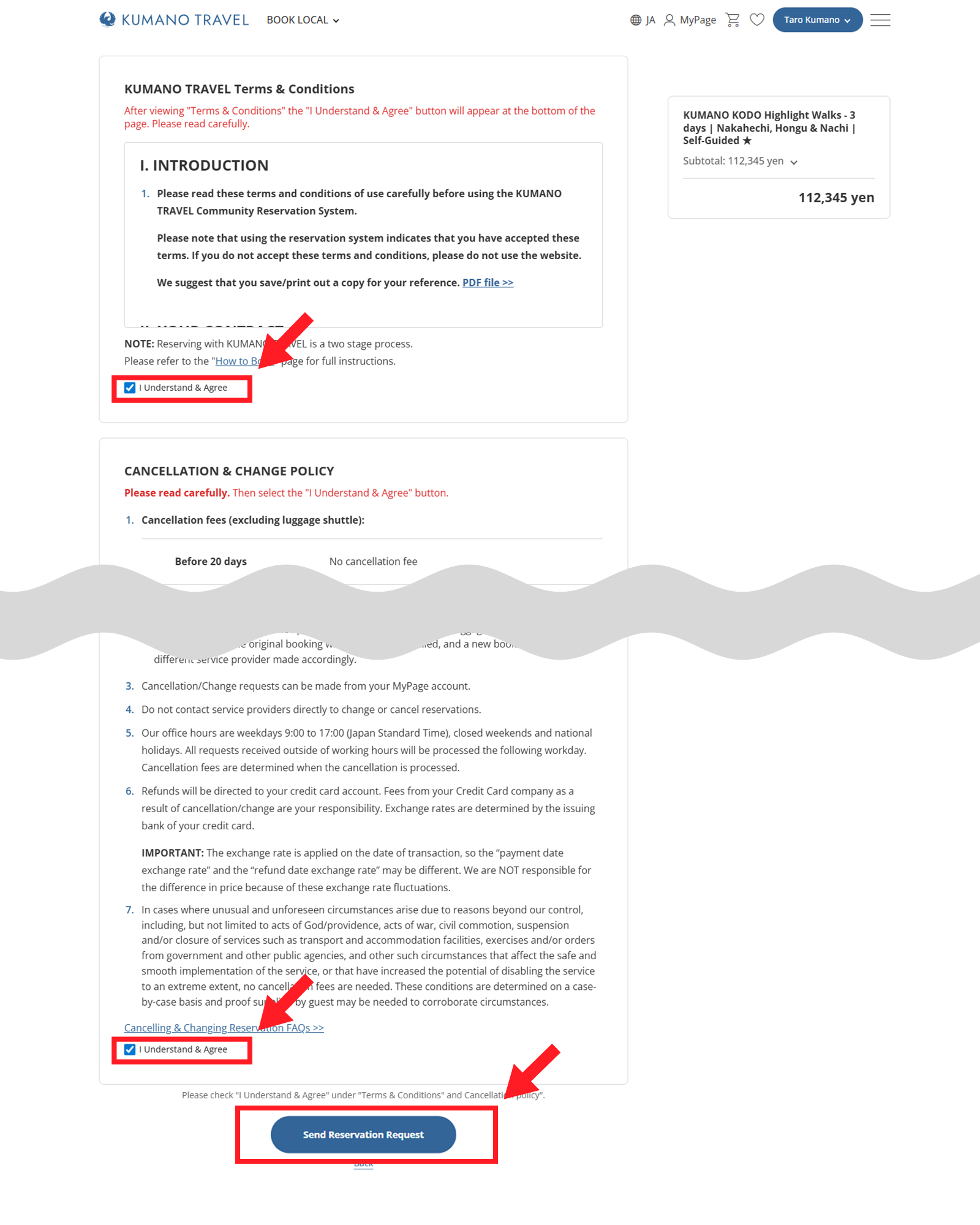
Review the details of the booking to make sure that everything is correct.
Read carefully and familiarize yourself with the terms and conditions for using the KUMANO TRAVEL Community Reservation System.
This is important information so as not to have misunderstandings regarding your reservation.
Once you scroll to the bottom of the terms and conditions the “I Understand & Agree” selection box will appear to check. Re-read the Cancellation & Change Policy and check the box. Then click the “Send Reservation Request” button.
NOTE
A pop-up window will appear with the following text:
----------------------------
- This is a "Reservation Request" only and not instant booking. (Please refer to the "How to Book" page for complete booking process overview)
- Each reservation is processed by real, locally-based people and not automated algorithms or AI.
Therefore, reservation processing times may vary. Thank you for your kind understanding.
※ Serious requests only please (no double booking requests).
----------------------------
Check the “I Understand & Agree” box, then click on the “Send Reservation Request” button.
Request Sent
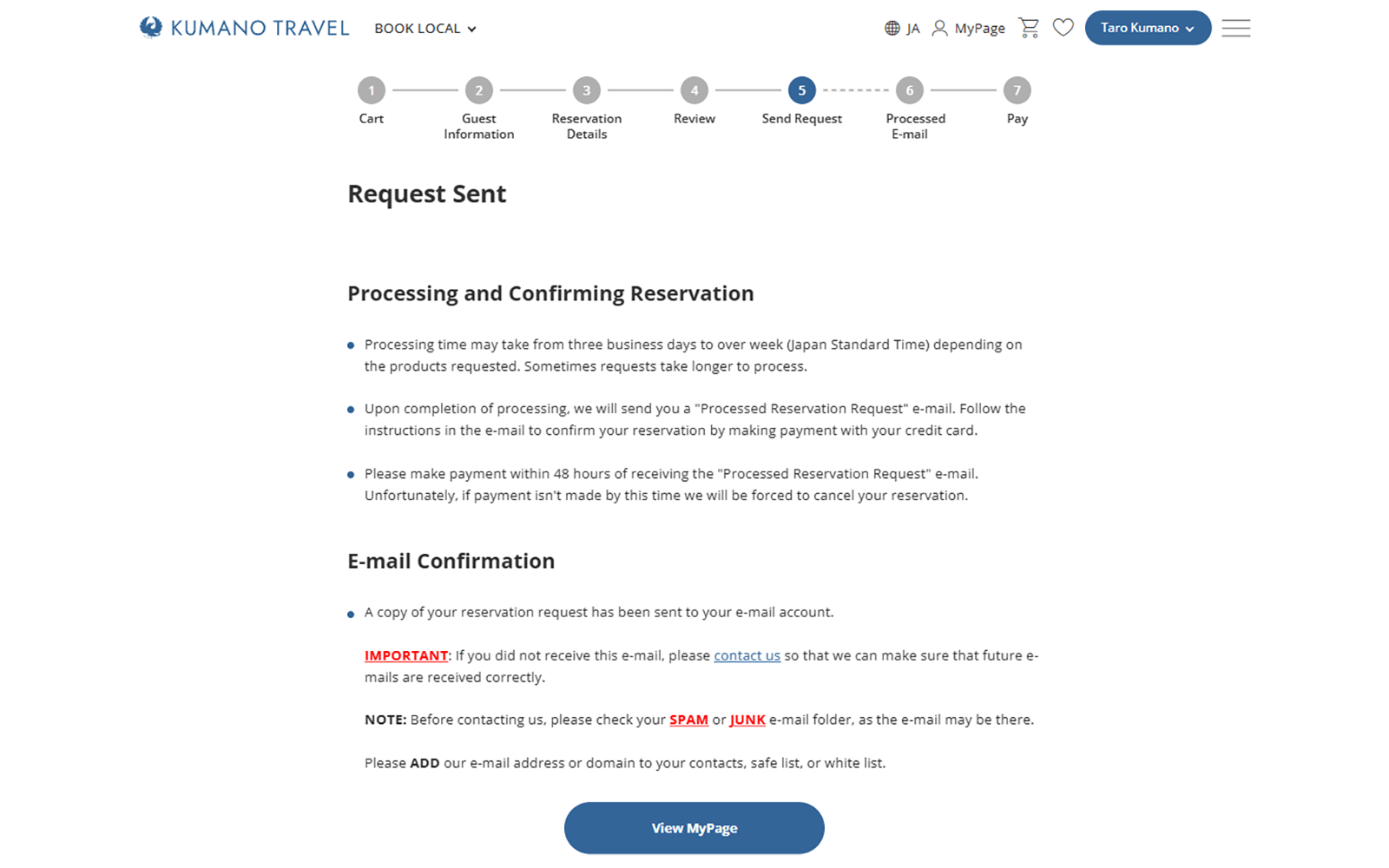
A "Received Reservation Request" e-mail will be sent. Double check that you received this important correspondence. Double-check that it has not been sent to your junk or spam mail folder.
Once your request is received our staff will process the reservation.
PART TWO | Pay to Finalize Booking
MAKE PAYMENT
Receive Processed E-mail & Sign In

Once your reservation request is completed you will receive a “Processed Reservation Request” e-mail. Sign in to your MyPage account.
Find Reservation
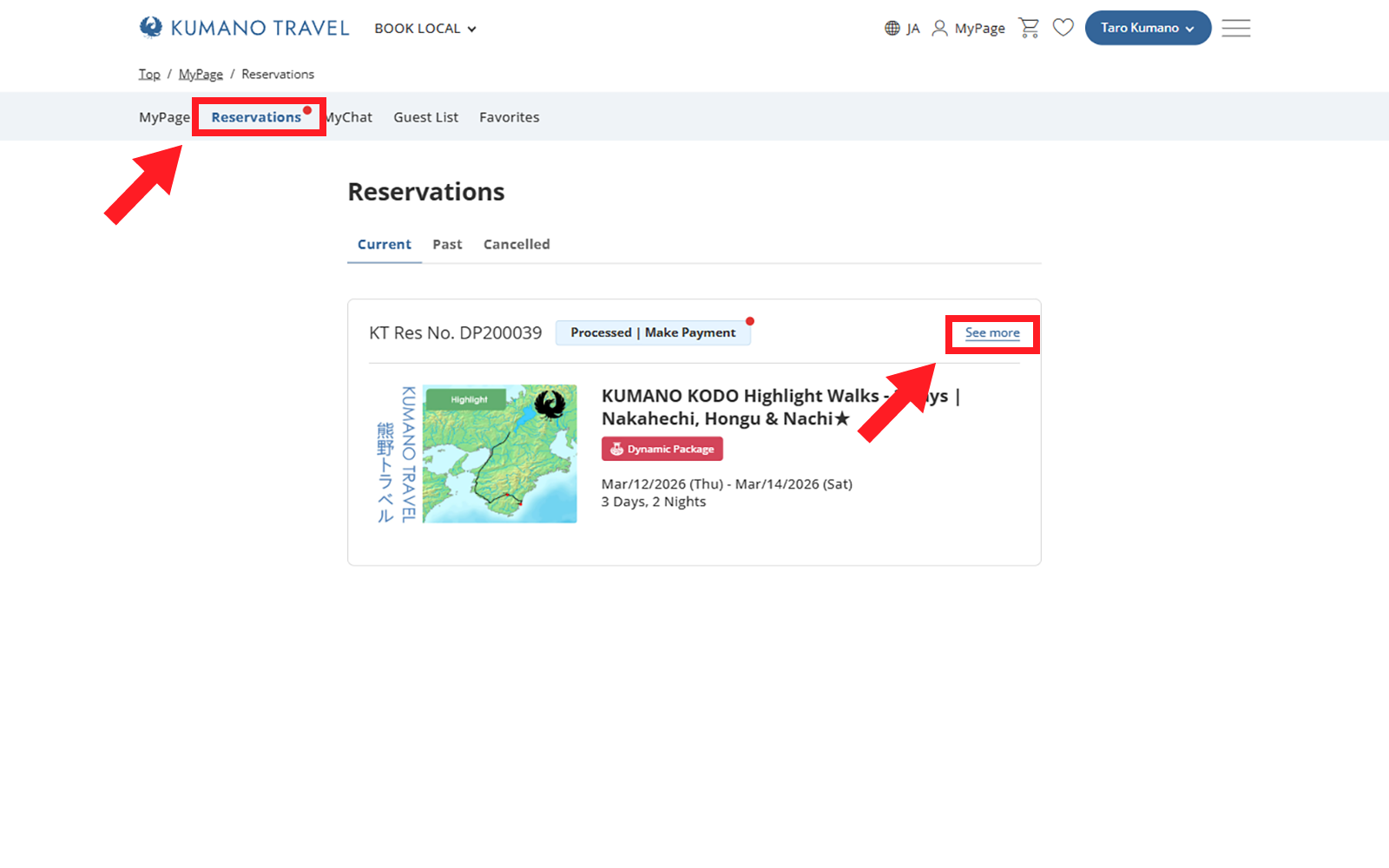
Click on the “Reservations” tab. Find your reservation number under the “Current” section. Your reservation will have the status “Processed | Make Payment”. Click “See more” or anywhere on the reservation box to continue to the details page.
Review Reservation Details
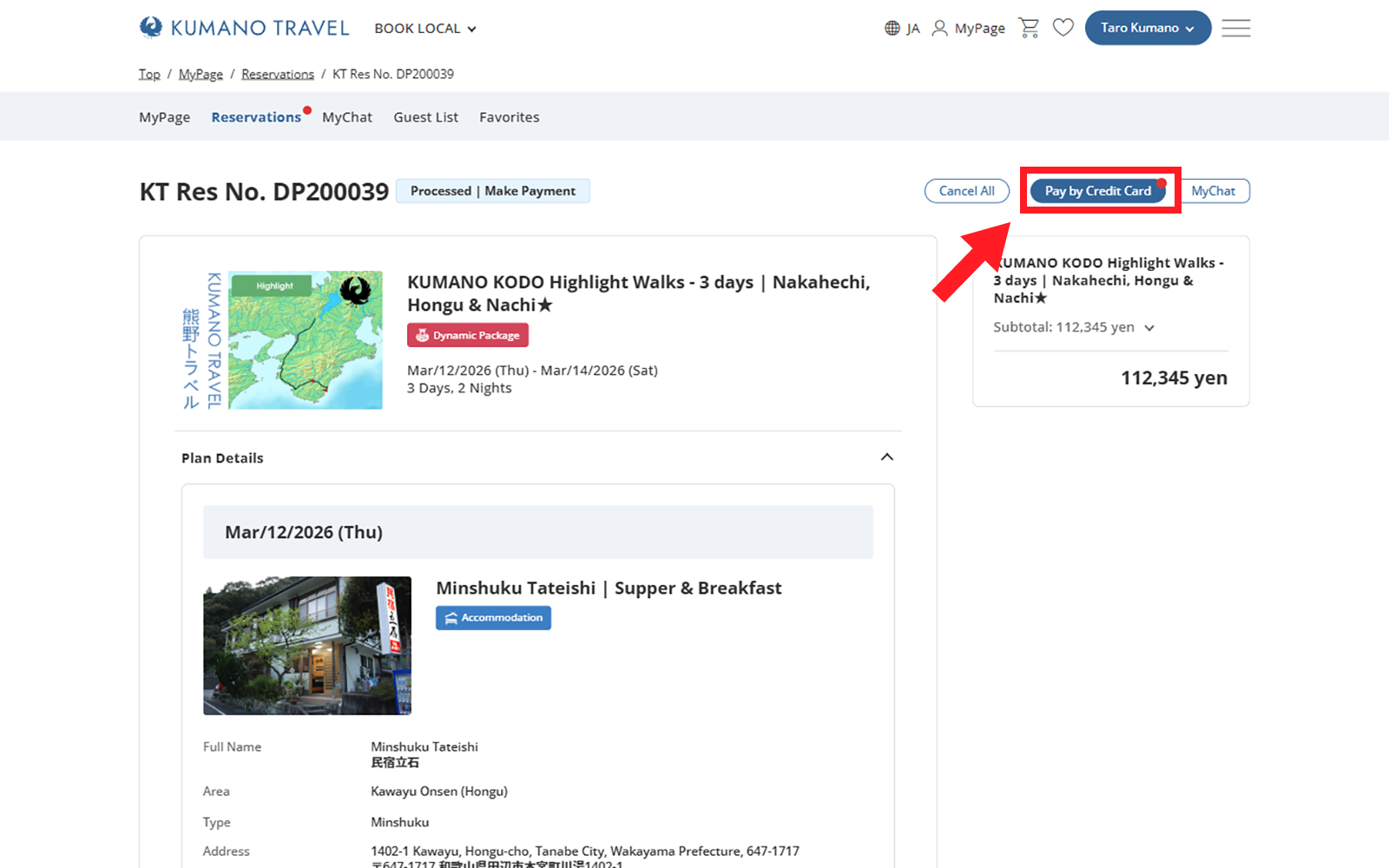
Review the details of the booking to make sure that everything is correct then click the “Pay by Credit Card” button on the top of screen.
Agree to Terms & Conditions
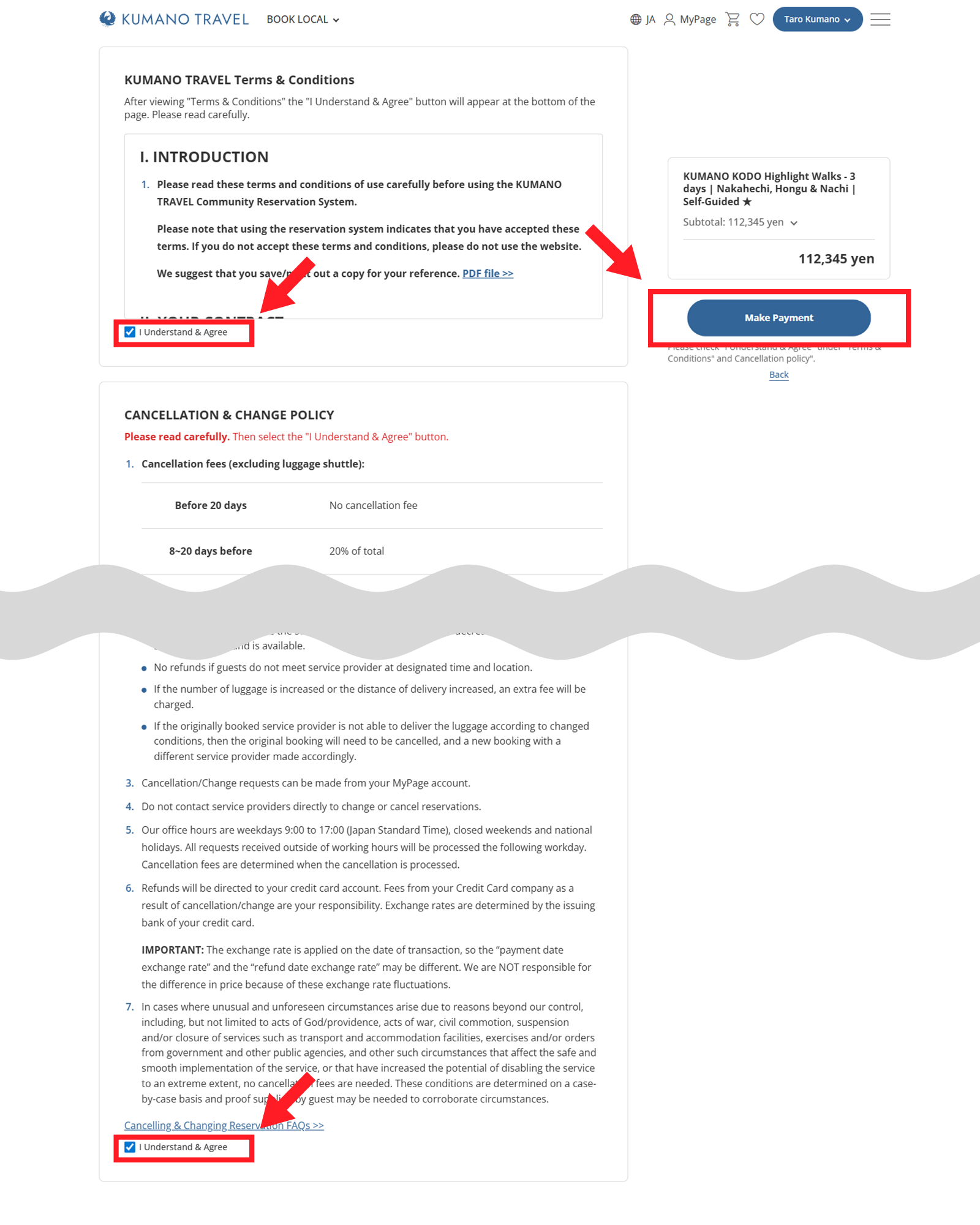
Re-read carefully and familiarize yourself with the terms and conditions for using the KUMANO TRAVEL Community Reservation System.
This is important information so as not to have misunderstandings regarding your reservation.
Once you scroll to the bottom of the terms and conditions the “I Understand & Agree” selection box will appear to check. Re-read the Cancellation & Change Policy and check the box. Then click the “Make Payment” button.
Pay to Confirm
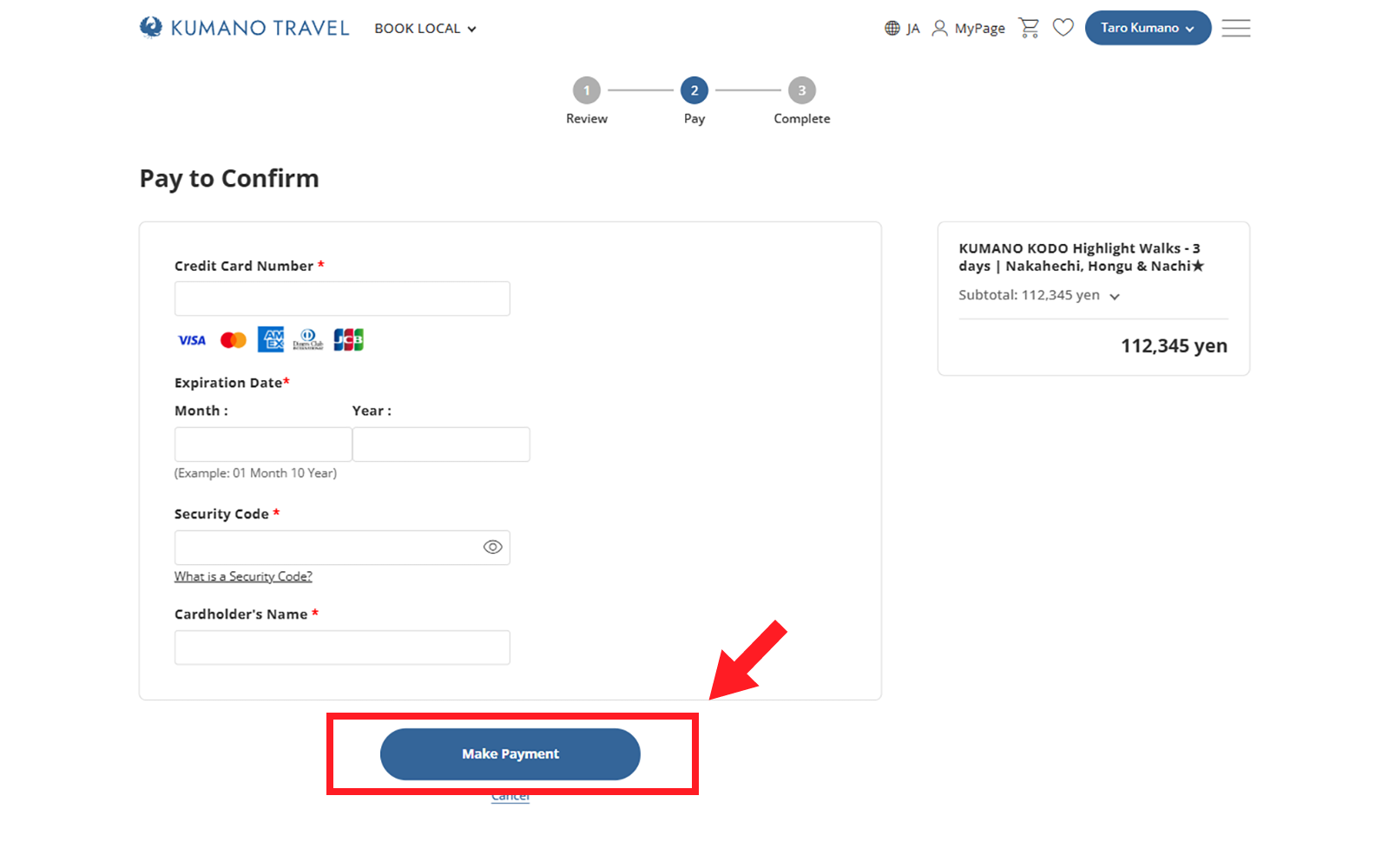
Enter your credit card details and click the “Make Payment” button to confirm booking.
NOTE
It takes time to complete payment.
Please do not close your browser/tab or change pages until the “Payment Complete | Reservation Confirmed” page appears.
Payment Complete | Reservation Confirmed
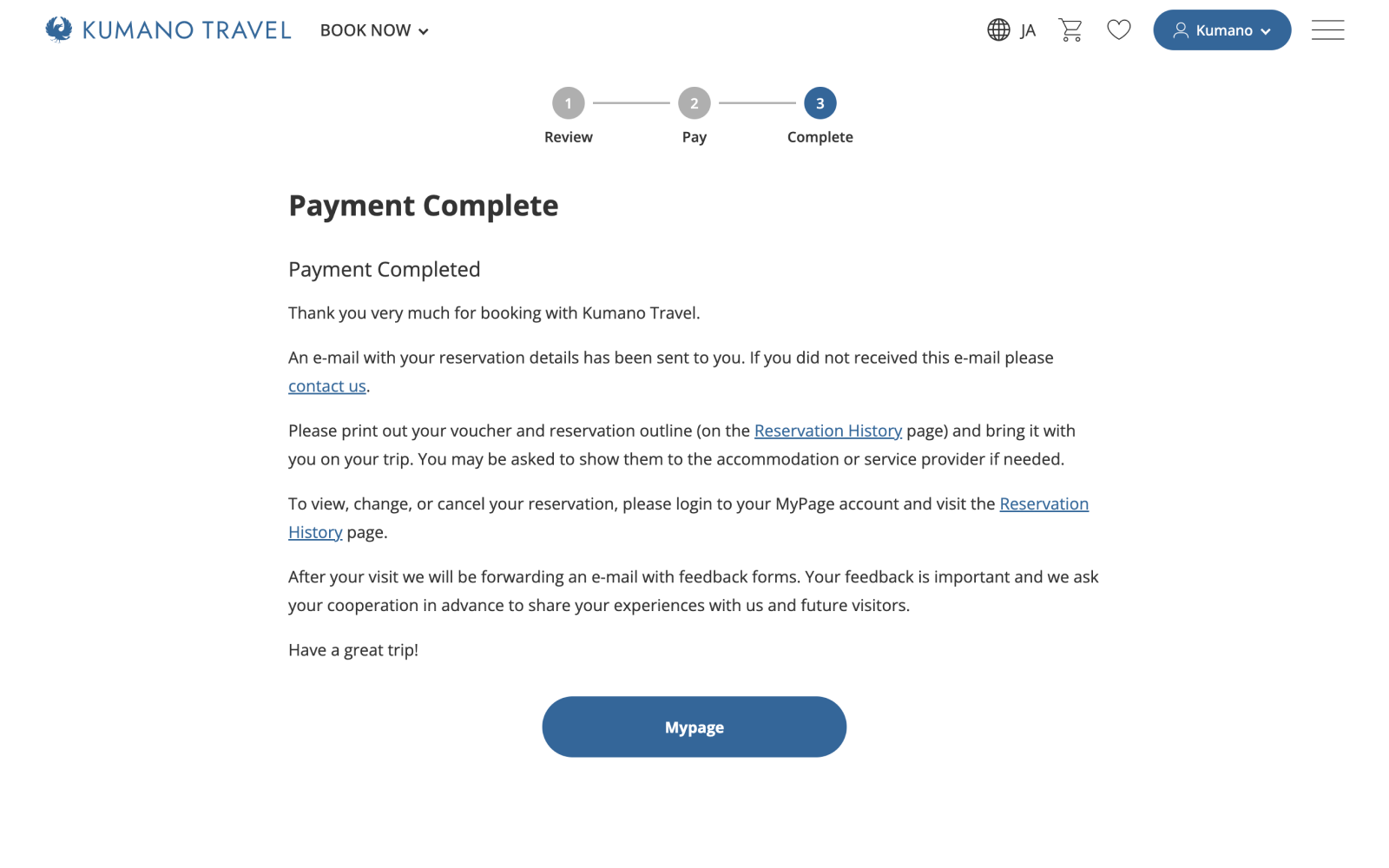
When the payment is complete your reservation is confirmed.
Download Voucher
PDF Download
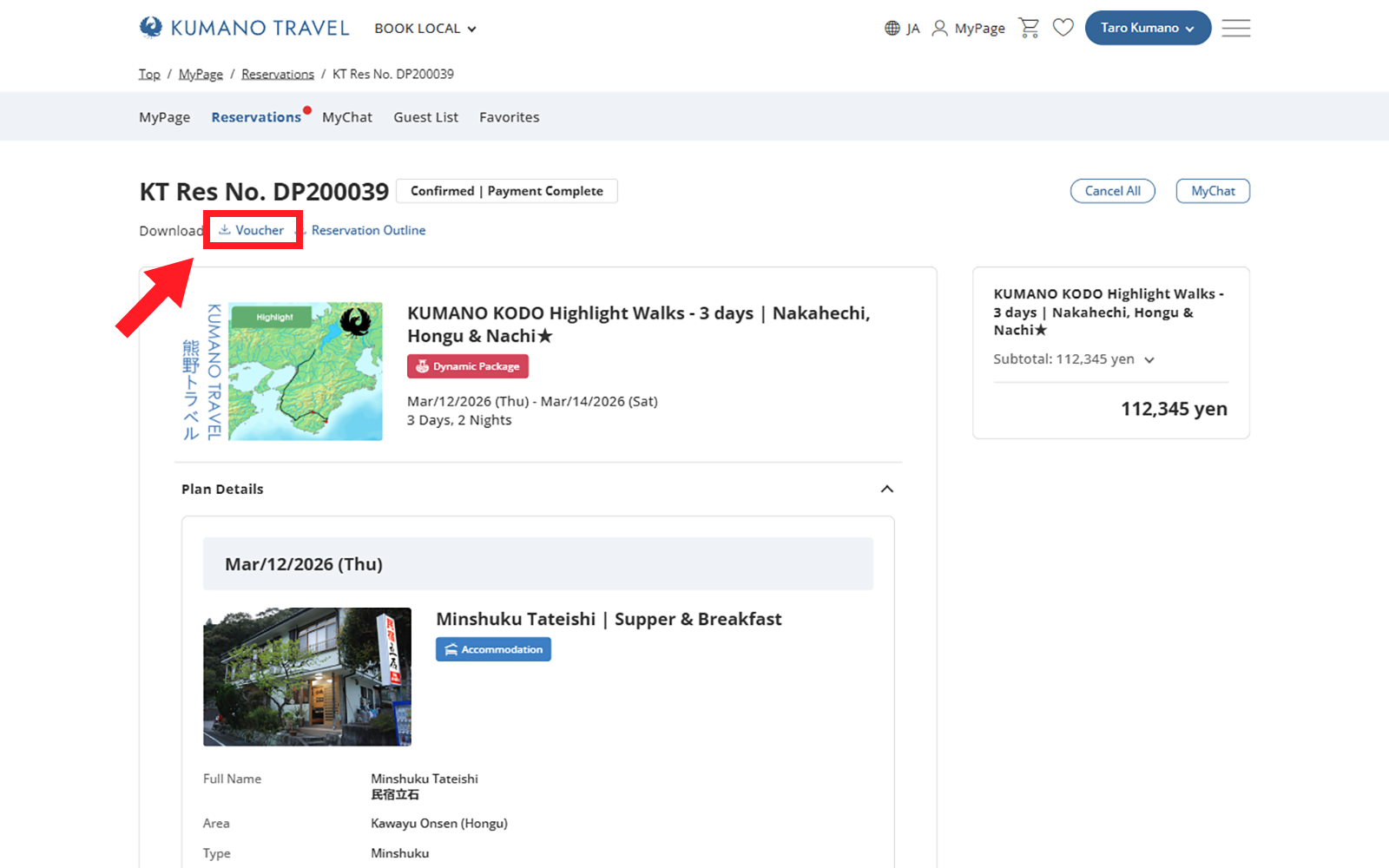
In your MyPage account under the “Reservations” tab, find your reservation number details page. After payment you can find two links next to Download: “Voucher” and “Outline”.
Please download, print, (or save a digital copy) of your voucher and bring it with you on your trip, as it may be necessary to show it to the accommodation or service provider.
NOTE
Your voucher is a PDF file. To read the PDF you may need to download the Adobe PDF Reader program.